
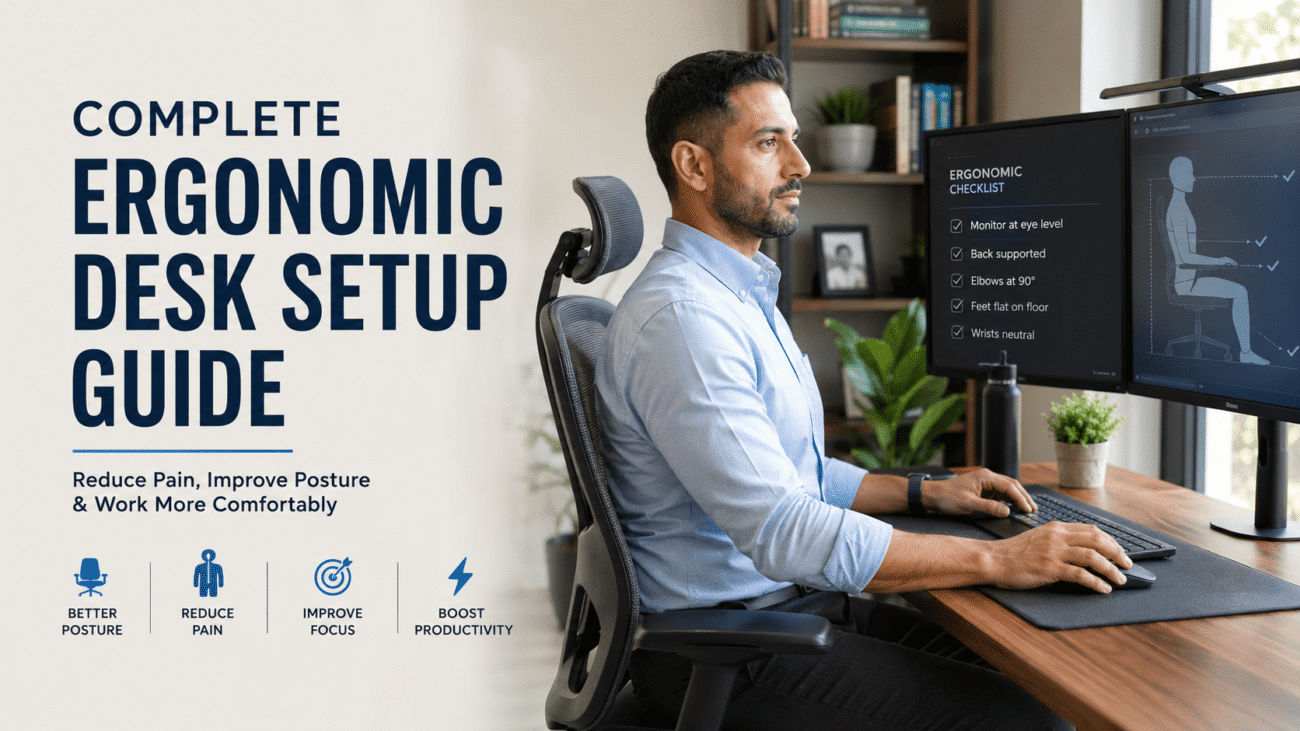
Many office workers spend more time sitting at their desk than they do sleeping.
Yet surprisingly few people pay attention to how their workstation is actually set up.
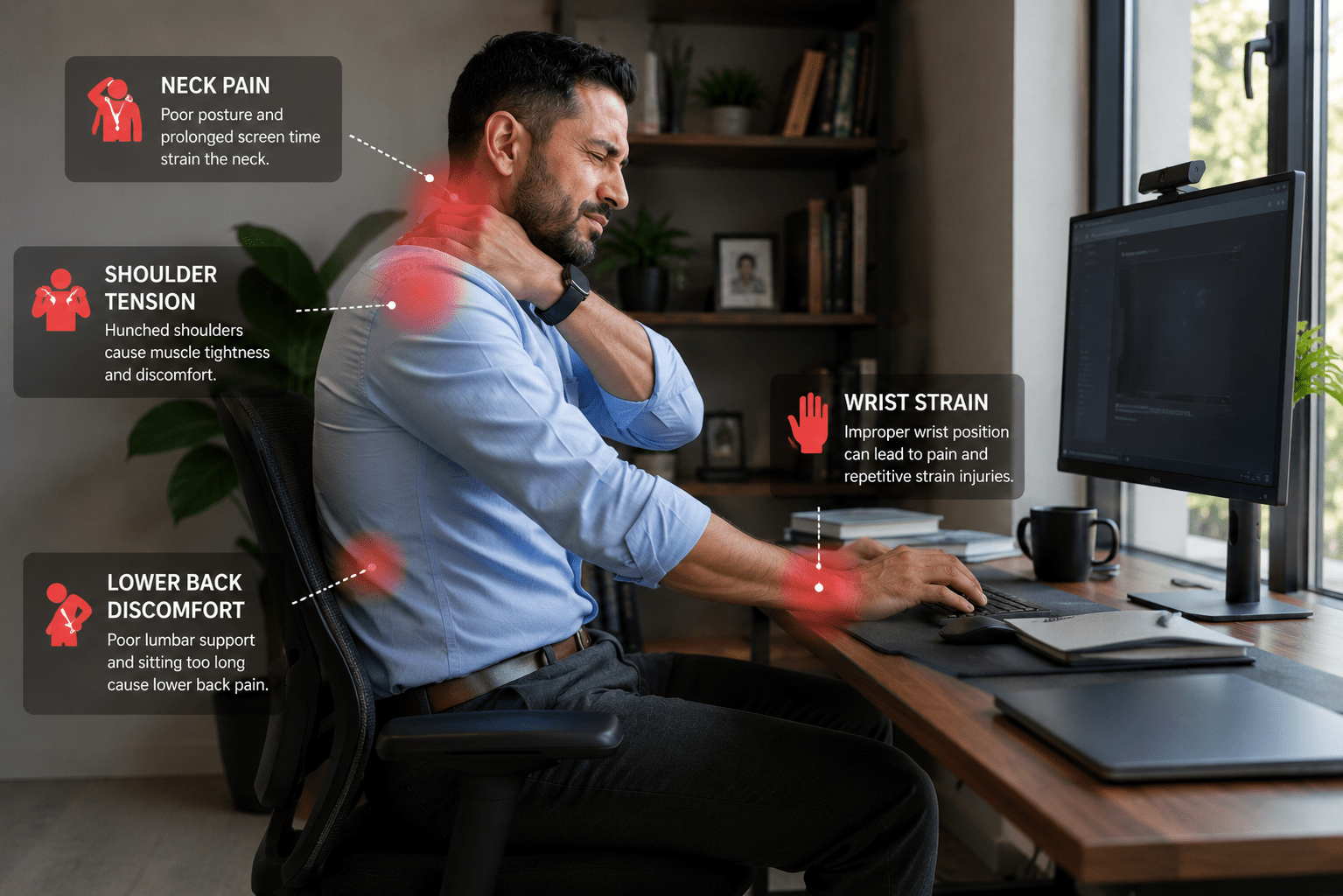
A poorly designed desk setup can contribute to:
- Neck pain
- Shoulder tension
- Lower back discomfort
- Wrist strain
- Eye fatigue
- Reduced productivity
Over time, these small problems can become daily frustrations.
The good news is that creating an ergonomic workspace doesn’t require a complete office renovation. Small adjustments can significantly improve comfort and help reduce physical strain.
If you’re building a healthier lifestyle around your desk job, start with our complete guide on Health and Fitness for Office Workers.
If posture is already becoming a problem, our guide on How to Improve Posture While Working at a Computer is an excellent companion to this article.
In this guide, you’ll learn how to create an ergonomic desk setup that supports better posture, reduces discomfort, and helps you work more comfortably throughout the day.
Table of Contents
- What Is Ergonomics?
- Why Ergonomic Desk Setups Matter
- Signs Your Workstation Needs Improvement
- The 10 Essential Parts of an Ergonomic Desk Setup
- Common Ergonomic Mistakes
- FAQs
- Conclusion
What Is Ergonomics?
Ergonomics is the science of designing workplaces, equipment, and tasks to fit the people using them.
The goal is simple:
Make work more comfortable and reduce unnecessary strain on the body.
Good ergonomics helps workers maintain healthier positions while performing daily tasks.
According to Occupational Safety and Health Administration (OSHA), ergonomic improvements can help reduce workplace discomfort and support employee well-being.
Why Ergonomic Desk Setups Matter
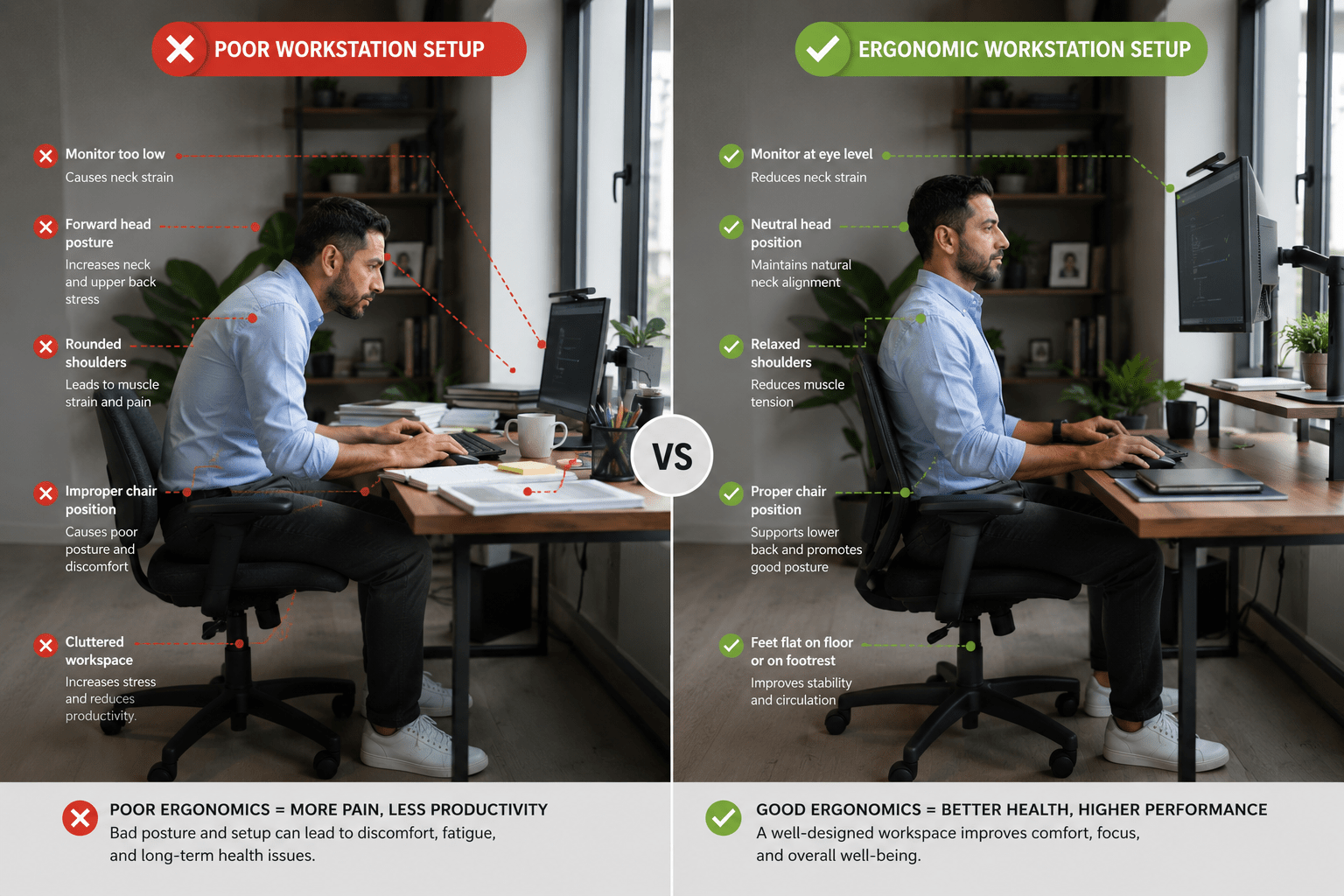
Many people think discomfort is a normal part of office work.
It isn’t.
While occasional stiffness can happen, persistent discomfort often signals that something in the work environment needs adjustment.
A properly designed workstation can help:
- Support posture
- Reduce muscle strain
- Improve comfort
- Increase productivity
- Reduce fatigue
- Support long-term health
Ergonomics becomes even more important when combined with movement and exercise.
If you’re spending most of the day sitting, our guide on How to Stay Active When You Sit All Day at Work can help balance your daily activity levels.
Signs Your Workstation Needs Improvement
Your body often provides clues that your setup isn’t working.
Common warning signs include:
Frequent Neck Pain
Often caused by looking down at a monitor.
Shoulder Tightness
Can result from poor keyboard or mouse positioning.
Lower Back Discomfort
May indicate inadequate lumbar support.
Wrist Pain
Often linked to poor desk height or keyboard placement.
Eye Fatigue
Frequently caused by monitor positioning and screen habits.
Feeling Stiff After Work
A combination of poor ergonomics and prolonged sitting.
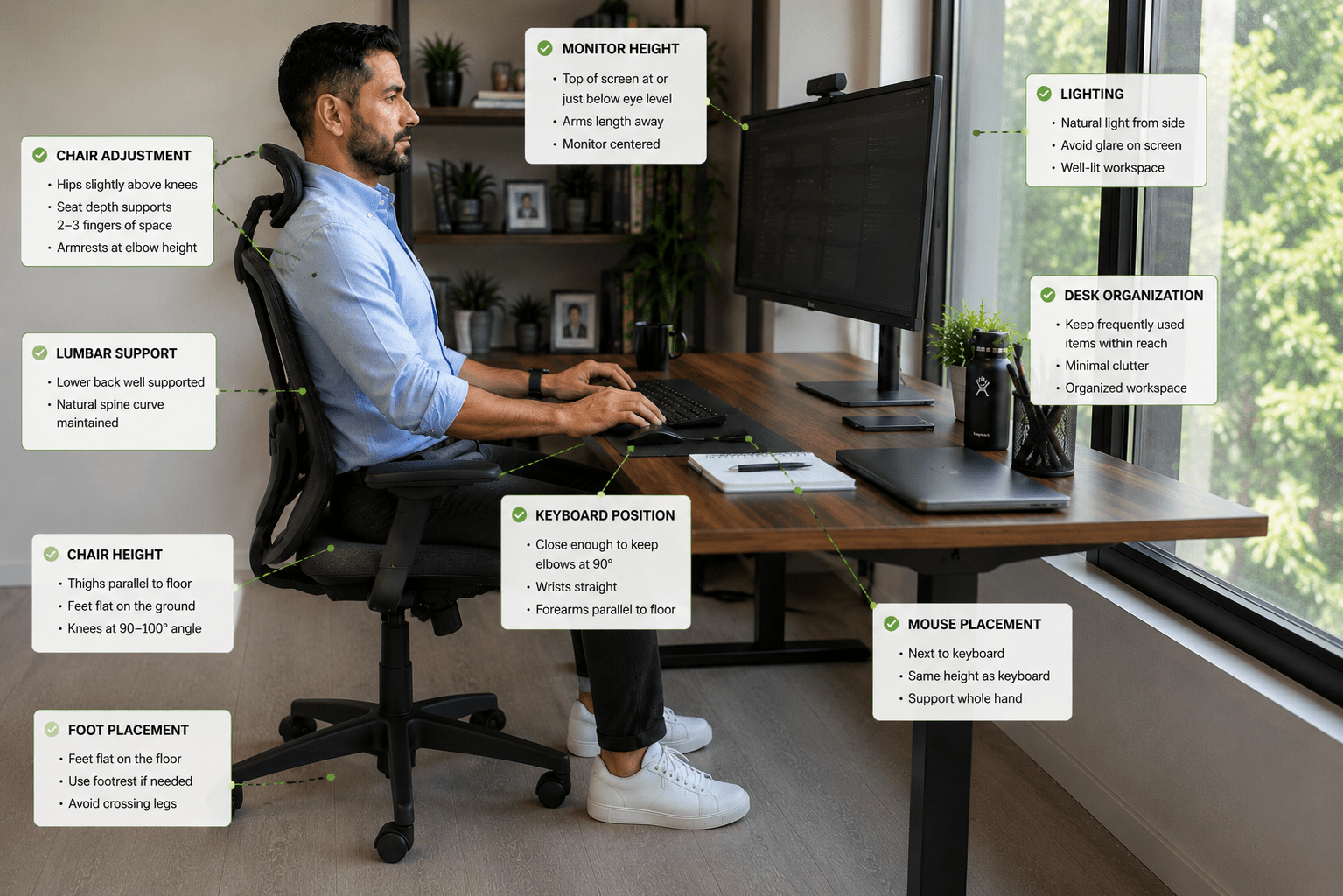
The 10 Essential Parts of an Ergonomic Desk Setup
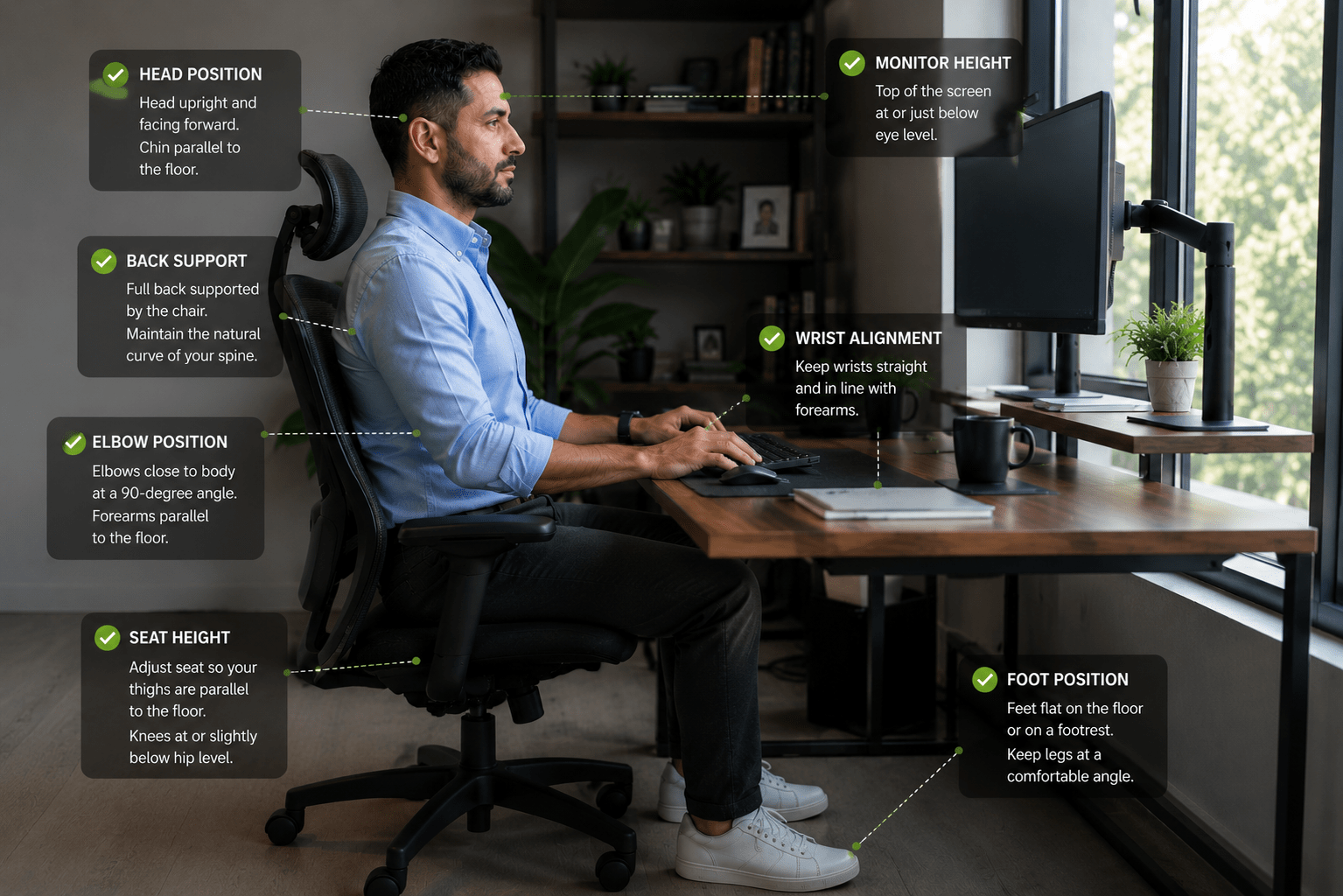
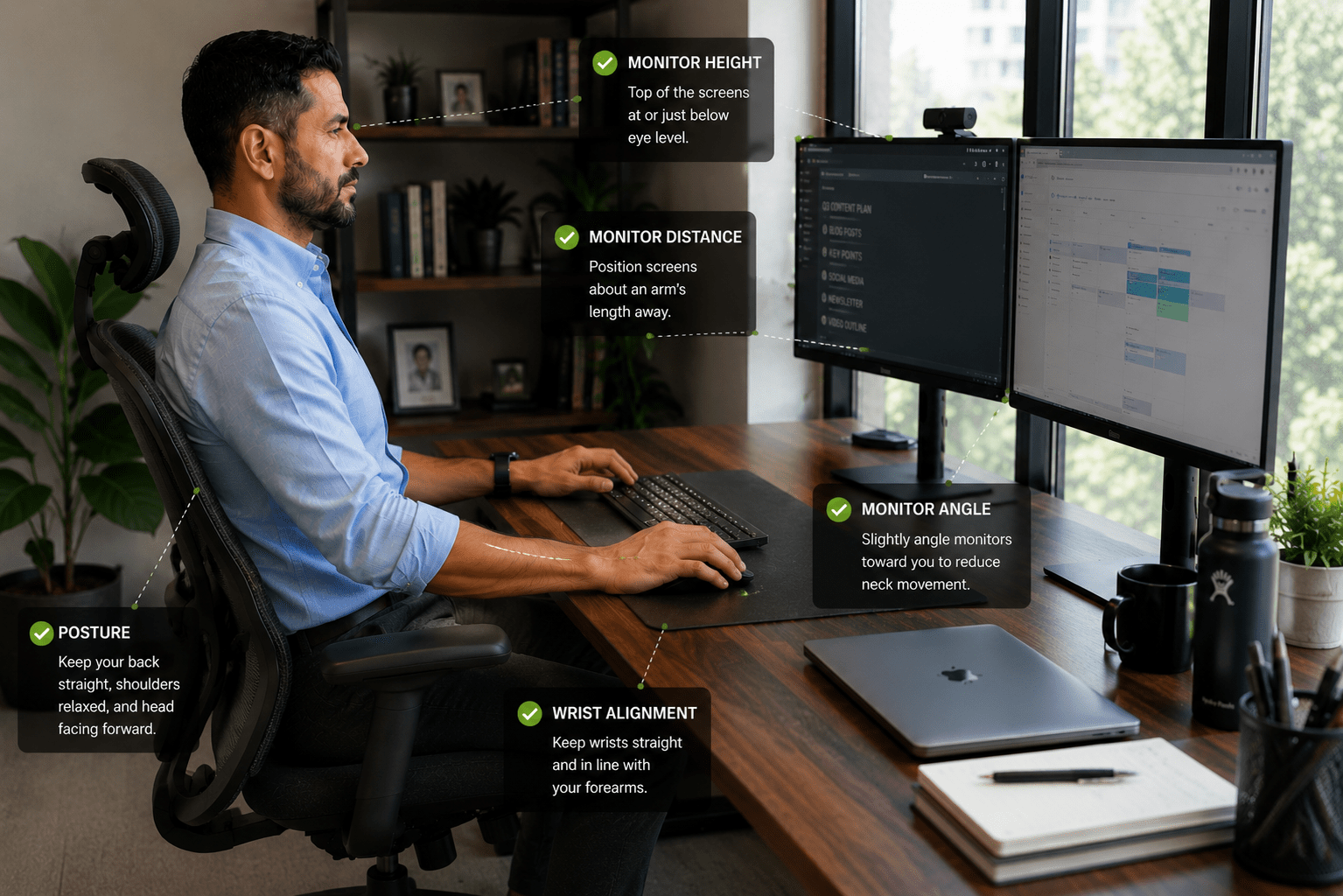
1. Monitor Height
Monitor placement is one of the most important ergonomic adjustments.
Ideal Position
- Top of monitor at or slightly below eye level
- Screen directly in front of you
- Approximately arm’s length away
This helps maintain a neutral neck position.
2. Ergonomic Chair
A good chair supports the natural curve of the spine.
Features to look for:
- Adjustable height
- Lumbar support
- Comfortable seat depth
- Adjustable armrests
The chair should support you, not force you into position.
3. Proper Desk Height
Desk height affects posture throughout the body.
Ideally:
- Forearms should be parallel to the floor
- Elbows should remain close to the body
- Wrists should stay neutral
4. Keyboard Placement
Your keyboard should allow your shoulders to remain relaxed.
Correct Position
- Close enough to avoid reaching
- Centered directly in front of you
- Wrists neutral
Avoid bending wrists upward while typing.
5. Mouse Placement
The mouse should sit close to the keyboard.
Reaching repeatedly can contribute to shoulder strain.
Best Practice
Keep the mouse at the same height as the keyboard.
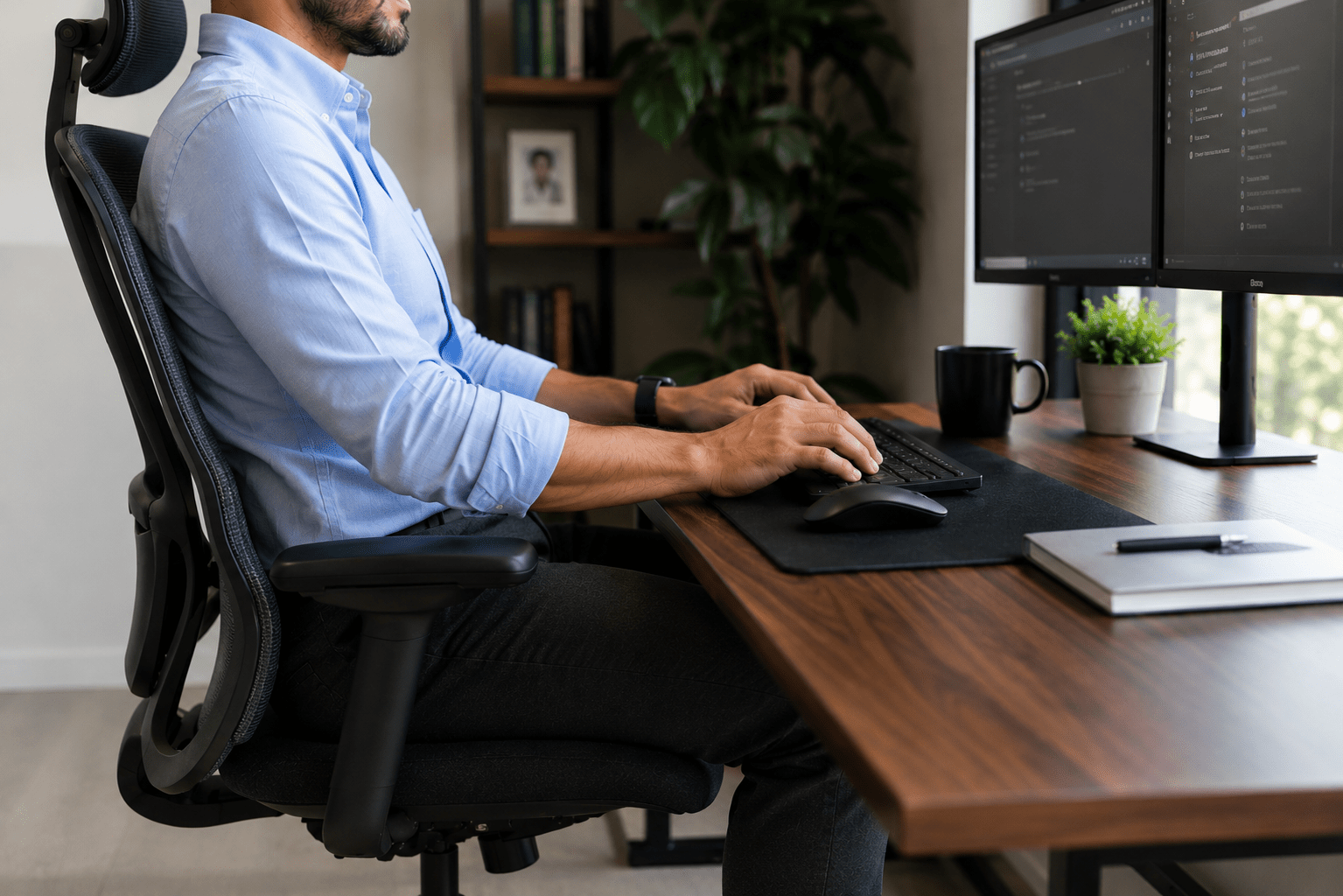
6. Lumbar Support
The lower back naturally curves inward.
Proper lumbar support helps maintain this position.
According to Mayo Clinic, maintaining spinal support can help reduce back strain associated with prolonged sitting.
7. Foot Position
Feet should rest comfortably on the floor.
If this isn’t possible:
- Use a footrest
- Adjust chair height
Proper foot support helps stabilize posture.
8. Lighting
Poor lighting contributes to eye strain and fatigue.
Natural daylight is often ideal.
Position screens to minimize glare whenever possible.
9. Frequently Used Items
Items used regularly should remain within easy reach.
Examples:
- Phone
- Notebook
- Water bottle
- Pens
- Documents
Reducing repetitive reaching helps minimize strain.
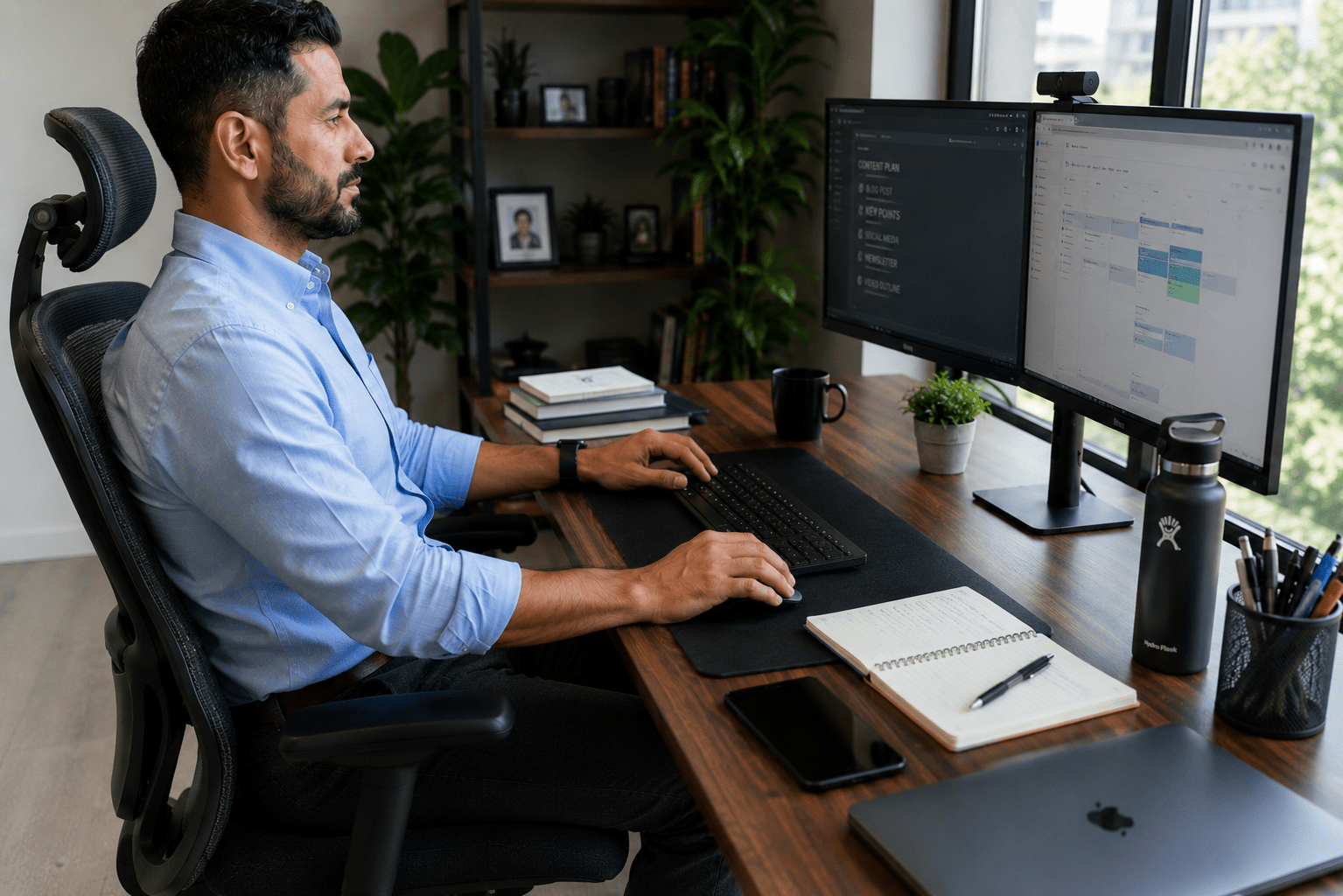
10. Movement-Friendly Setup
Even the best ergonomic workstation cannot replace movement.
Regular movement remains essential.
Our Daily Mobility Routine for Desk Workers can help offset the effects of prolonged sitting.
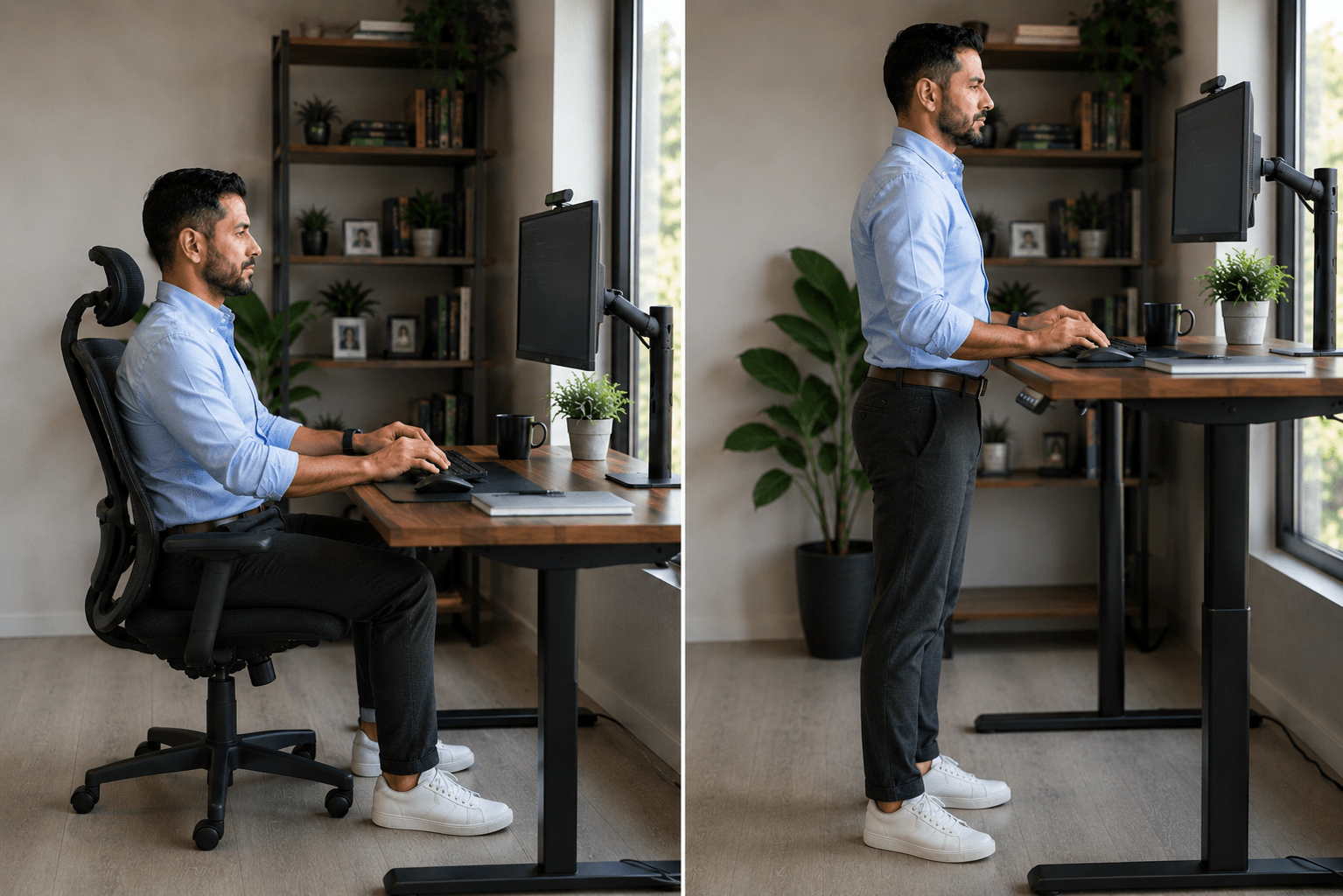
Should You Use a Standing Desk?
Standing desks have become increasingly popular among office workers.
While they can be helpful, they are not a complete solution.
A common misconception is that standing automatically eliminates the negative effects of sitting.
In reality, the goal is movement, not simply replacing one static position with another.
Benefits of Standing Desks
- Encourage more movement
- Reduce sitting time
- Allow position changes throughout the day
- May improve comfort for some workers
Important Reminder
Standing all day isn’t ideal either.
The best approach is alternating between:
- Sitting
- Standing
- Walking
- Stretching
- Movement breaks
If you’re looking for practical ways to move more during the day, our guide on How to Stay Active When You Sit All Day at Work can help.
Laptop Ergonomics
Laptops are convenient but often create ergonomic challenges.
Because the screen and keyboard are attached, users frequently compromise posture.
Common laptop-related problems include:
- Looking downward for long periods
- Rounded shoulders
- Forward head posture
- Neck strain
Better Laptop Setup
Consider using:
- Laptop stand
- External keyboard
- External mouse
This allows the screen and keyboard to be positioned independently.
According to Cornell University Ergonomics Program, separating the monitor from the keyboard can help support healthier workstation positioning.
Dual Monitor Ergonomics
Many professionals use two monitors.
Proper positioning depends on how frequently each screen is used.
If Both Monitors Are Used Equally
Position both monitors directly in front of you with the center point between them aligned with your body.
If One Monitor Is Primary
Place the primary monitor directly in front of you.
Position the secondary monitor beside it.
Avoid twisting your neck repeatedly throughout the day.
Home Office Ergonomics
Remote work has changed how many people perform their jobs.
Unfortunately, many home offices were never designed for full-time work.
Common problems include:
- Working from couches
- Using kitchen tables
- Poor chair support
- Improvised workstations
Home Office Improvement Tips
- Use a supportive chair
- Elevate the monitor
- Improve lighting
- Create a dedicated workspace
- Keep frequently used items nearby
Small improvements often provide meaningful comfort benefits.
Ergonomics and Movement Work Together
Many people focus entirely on workstation setup and forget movement.
Even a perfectly designed workstation cannot fully compensate for prolonged inactivity.
That’s why ergonomics should be combined with:
Morning Exercise
Our guide on Best Morning Exercises for Office Workers can help prepare your body for the workday.
Mobility Training
Our Daily Mobility Routine for Desk Workers supports healthy movement and flexibility.
Stretching
Regular stretching helps reduce tension that develops from prolonged sitting.
Read our guide on Best Stretches for Office Workers.
Healthy Nutrition
Fueling your body properly also supports productivity and energy.
Our guide on Healthy Snacks for Office Workers to Boost Energy provides practical snack ideas for busy professionals.
Common Ergonomic Mistakes Office Workers Make
Leaning Toward the Screen
Many people unconsciously move their head closer to the monitor.
Bring the screen closer instead.
Ignoring Chair Adjustments
Most ergonomic chairs have adjustable features that often go unused.
Take time to customize the chair to your body.
Working for Hours Without Movement
Even perfect posture becomes problematic if maintained continuously.
Regular movement remains essential.
Using a Laptop Without Accessories
A laptop alone often encourages poor posture.
Keeping Frequently Used Items Too Far Away
Repeated reaching can contribute to unnecessary strain.
Focusing Only on Equipment
Expensive equipment alone won’t solve ergonomic problems.
Healthy habits matter just as much.
Ergonomic Workstation Checklist
Use this checklist to evaluate your setup.
Monitor
✅ Top of screen at eye level
✅ Monitor directly in front of you
✅ Screen approximately arm’s length away
Chair
✅ Lumbar support available
✅ Feet flat on floor
✅ Knees roughly level with hips
Keyboard and Mouse
✅ Positioned close to body
✅ Wrists neutral
✅ Elbows near sides
Workspace
✅ Frequently used items within reach
✅ Minimal glare
✅ Comfortable lighting
Movement
✅ Movement break every 30 to 60 minutes
✅ Stretching routine
✅ Daily mobility work
Frequently Asked Questions
What is the most important part of an ergonomic desk setup?
Monitor height is one of the most important factors because it directly affects neck and head position throughout the day.
Are standing desks worth it?
For many people, yes. However, standing desks work best when combined with regular movement rather than continuous standing.
Can ergonomics reduce back pain?
Proper workstation setup may help reduce physical strain that contributes to discomfort.
If you’re already experiencing back issues, our guide on 5 Minute Desk Workouts to Relieve Back Pain for Remote Workers may also help.
Is an expensive ergonomic chair necessary?
Not always. Proper adjustments and healthy habits are often more important than price.
How often should I stand up from my desk?
Many experts recommend moving every 30 to 60 minutes.
Important Points to Remember
- Ergonomics is about fitting the workspace to the worker.
- Small adjustments often create meaningful improvements.
- Monitor placement matters.
- Lumbar support is important.
- Movement remains essential.
- Ergonomics and healthy habits work together.
Disclaimer
This article is for educational purposes only and should not be considered medical advice. Consult a qualified healthcare professional if you experience persistent pain, injuries, or health concerns.
Conclusion
An ergonomic desk setup can make a significant difference in comfort, posture, productivity, and long-term health.
The goal isn’t creating a perfect workstation. The goal is creating a workspace that supports your body while encouraging healthy habits.
Start by adjusting your monitor, chair, keyboard, and desk setup. Then combine those improvements with regular movement, stretching, mobility work, and healthy nutrition.
Small changes made consistently often produce the biggest results.
For a complete workplace wellness strategy, explore our guide on Health and Fitness for Office Workers.